Computer,Handphone,Windows,Android,Linux,IOS,Blackberry

Microsoft  started to present Windows 10

Microsoft started to present Windows 10

Windows 10 has now officially begun can be obtained. And the good news, Indonesia has become one of the countries which are prioritized by the Microsoft. Even Indonesia became the fifth recipient of Windows 10. Other countries also have acquired Windows 10 include New Zealand, Australia and Singapore.
windows 10
Windows 10 launched by Microsoft is also a final version that has been through testing in a Windows program Insider. Microsoft CEO Andrew Diantoro Indonesia revealed that as many as 5 million people have participated in the program.

And as promised earlier, Windows 10 this can be obtained free of charge for users of Windows 7
Wifi Is Not Detected On The Laptop Windows 7

Wifi Is Not Detected On The Laptop Windows 7

on laptops / notebooks that use Windows 7 as the operating system is not really difficult, just sometimes trivial things like this can trouble us if the times when we need to rely on an internet connection with wifi internet network "without wires" that are essential for the purposes of a sudden, Naah to overcome the wifi network that would not be detected by Windows 7 laptop can listen to my explanation on this article.
To How To Overcome Wifi can not connect to the Internet on your laptop / notebook windows 7 you, here are some things you need to make sure before:
1. Being in the area Wifi Internet: Prior to first make sure the other check if you already are in a wifi area, of these factors usually occurs in a closed room that led to the wifi network was not able to get into your room.
2. Network Wifi Normal: If the wifi network in your area is normal, then the next you can check other factors that cause wifi internet is not detected on your laptop / notebook you.
If both of the above you have the normal checks and turns in the sense of being in the area adan wifi and wifi network conditions were normal, the following ways to overcome the wifi is not detected well in laptop windows 7:
1. Turn on the Wifi internet on your laptop, the way in Fn + F10 (for laptop axios), there is a Fn + F3 where every type of laptop has a different combination of an easy way to find out you click bebarengan button (Fn + symbol buttons signal / transmitter) and in several types such as toshiba laptop wifi indicator lights will illuminate indicating you have wifinya signal on / switch.
2. Furthermore, if you have not finished as well, but had to follow the way of the above then you can do this way, namely:
- Go to the control panel via Start >> Control Panel, then on the View By: you choose the large icon that looks like this
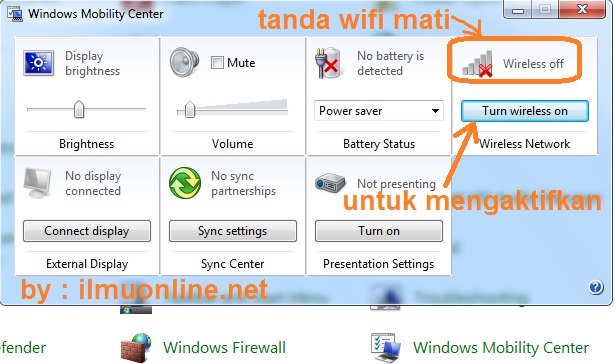
- select Windows Mobility Center, so it will look like this
wifi trouble pada laptop 450x261 Mengatasi Wifi Internet yang tidak terdeteksi di Laptop Windows 7- In the wirelles will look wirelless status "wifi" internet you, if the status "wireless off" means that your wifi is still active.
- Next you can activate your wifi by selecting the "Turn Wireless On"
cara mengatasi wifi yg trouble 450x266 Mengatasi Wifi Internet yang tidak terdeteksi di Laptop Windows 7- If you have, to see the results if it works or not just try to open a browser and try to access the internet.
"Magic Key" Windows on the Keyboard

"Magic Key" Windows on the Keyboard

Windows buttons shown on the keyboard rather than not have a function. In addition to functioning as a shortcut to the start menu, Windows key has several other functions like fast and CTRL ALT already known to many people.

Citing the Microsoft home page, there are some shortcuts that can be done using the Windows key. Ie according to its function as a shortcut, Windows key function makes it easier to interact with some of the existing programs.

As for some shortcut to the Windows key that can be applied, namely Windows + D, where shortcuts can help clean up an application or program that runs on the desktop and back to the desktop. Then, Windows + E is useful for opening Explorer, Windows + F is useful to search for files or folders.

Furthermore, Windows + M has the function of minimizing all windows, Windows + Down Arrow serves to minimize windows that are opened, Windows + Up Arrow Up Arrow function. If you are in a hurry and do not have time to lock the computer, you only need to press Windows + L.

Furthermore, Shift + Windows + M to undo all the minimize, Windows + Tab cycles there are functions for task bar button, and Windows + F1 to open the Help.
 remove viruses on android easily

remove viruses on android easily

Install AntiVirus
This case is done at the time of android phone that has been exposed to the virus, but the extent of the damage is not so severe. After installation AntiVirus, my friend can proceed with scanning. The scanning process is the first step. After scanning will usually display a notification where the application and any problematic files (infected).

Wait until the scanning process is completed. After that please do cleaning the virus beforehand (delete files infected with a virus).

Uninstall Applications Troubled
After the cleaning process is completed, the next step is to conduct application removal or commonly called the Uninstall. Regarding any application that needs to be deleted, my friend could see it in the list of applications that are exposed to infection during the scanning process is completed. Remove infected application or applications that are suspicious.

To eliminate application (uninstall), please go to Settings -> Applications -> Manage Applications -> Select Applications to be on Uninstall, then select Uninstall. After uninstall the problematic application. android supposed friend is back in normal circumstances.

If it is still no sign - a sign of troubled pal android phone (still feels slow or applications are not running as it should), the possibility of phone pal severe viral infection. For such cases, the solution is to do a master reset (perform the initial setup).

Initial Setting (Master Reset)
This process will remove all applications and datapada phone, so be careful - careful :) Make sure buddy has backup data - data that is considered important such as photos, music and telephone number. Once again, do a backup first!

To perform a master reset my friend can do this by going to Settings -> Privacy -> Factory data reset. After that will appear warning Delete all data on USB storage. If the friend does not want the data erased sure pal on memorycard Do not mark "Format USB storage". Remember, do not in check! Then select Reset Data Telfon.

Perform Prevention
Actually, this step is the first step, but I deliberately put it on the final point for his article titled how to clean up a virus on android. That is android phone has been in a state exposed to the virus. But still it is also important preventive measures. Due not to a cell phone has been my friend wash again exposed to the virus again.

The process of entry of virus or malicious program into the phone, usually begins at the moment we do transfer data between the phone and downloading data from the internet. Usually in the form of a trojan virus (application / malware that infiltrate into other applications). Once the application is executed, the malicious program will break away and begin performing basic functions (infecting the system).

For prevention, my friend can do by installing antivirus software before installing other applications. This antivirus firewall will be when my friend do the installation.

The next step is prevention, make sure the application is downloaded is an official application which is at playstore. Official applications sourced from playstore risk is small compared to when we download the application directly, ie directly from the website or directly perform the application in a google search.
How To Automotically Log On To Windows Vista

How To Automotically Log On To Windows Vista

As long as security isn't a big concern, configuring Windows Vista to logon to your user account automatically can save you some serious time and effort when your computer is starting up.
Just follow the easy steps outlined below to make Windows Vista automatically logon to your user account. After completing these steps, Windows Vista will stop prompting you for a user name and password on startup!
Difficulty: Easy
Time Required: Configuring Windows Vista to auto login to a user account usually takes less than 5 minutes

Here's How:

1.      Click on Start, type the following command in the search box, and then hit the Enter key
This command will load the Advanced User Accounts Control Panel applet.
2.      In the Users tab, uncheck the box next toUsers must enter a user name and password to use this computer.
3.      Click on the Apply button at the bottom of the User Accounts window.
4.      When the Automatically Log On dialog box appears, enter your password in the two fields where it's asked and then click OK.
5.      Click OK on the User Accounts window to complete the process.
From now on, when your PC starts up, Windows Vista will log on automatically.


How To Recover Deleted Files

First things first: recovering deleted file from your Hard Drive, media card, Flash drive, iPhone, or some other device is very possible While I can't guarantee that your accidentally deleted file can be recovered, there's a good chance it can be, especially if it hasn't been too long since it's been deleted.
Files that get deleted aren't usually truly deleted but are instead just hidden, waiting to be overwritten by something else. Zip & Unzip Major File Formats Safely & Easily - Download Now!
You can take advantage of this fact and recover deleted files you want back.
Follow the steps below, in order, to maximize your chances of recovering deleted files from your device:
Difficulty: Easy
Time Required: Depending on how long ago the file was deleted, your habits on emptying the Recycle Bin, and some other factors, recovering files you've deleted could take a few minutes or up to an hour or so.

How to Recover Deleted Files

  1. Stop using your computer! Aside from the specific tasks I outline during the rest of this tutorial, the smartest thing you can do is to stop writing data to the drive that contained the deleted file.

    As I mentioned above, files that are deleted are actually just hidden. The only way the file you want to recover disappears completely is if the same physical space it occupied on the drive is overwritten. So... don't do anything that might cause that to happen.

    Most "write heavy" are things like installing software, downloading or streaming music or videos, etc. Doing those things won't necessarily overwrite your file but the chances go up the more you do them.

    See  How Long is Too Long Before a File is Unrecoverable? for more on this if you're interested.
  2. Restore the deleted files from the Recycle Bin. You've probably already looked in the Recycle Bin, but if not, do so now. If you're lucky enough to have not emptied it since you deleted the file, it might be here and in perfect working order.

  1. Tip: Files you delete from media cards, USBbased drives, external hard drives of any kind, and network shares will almost never be stored in the Recycle Bin. The same goes, more obviously, for things like your smartphone. Very large files from any source are also often deleted outright, skipping the Recycle Bin.
     
  2. Download a free file recovery program and use it to search for and recover your deleted files. If the files you're looking for have already been emptied from the Recycle Bin, a file recovery tool can help.

    I'm a huge fan of Recuva, my top pick in my list, but if you don't like it for some reason, or if you try it and it doesn't find the file you need to recover, by all means work down the list.

    Important: I highly recommend downloading the "portable" version of Recuva, or whatever program you choose, directly to a flash drive or some drive other than the one with the missing file(s) on it. See Should I Use a File Recovery Tool's Portable or Installable Option? for more on this.
     
  3. Extract the portable version of the file recovery tool you chose. Portable programs usually come in ZIP format which Windows natively supports (i.e. unzipping is easy in Windows).

    If you downloaded it to a flash drive, extracting it right there onto the flash drive is great.

    If you had no choice but to use your hard drive, extract it there. If you had to use your hard drive and choose an installable version of a file recovery tool, go ahead and install it as directed.
     
  4. Use the file recovery tool to scan for files that can be recovered, a process that could take a few seconds to several minutes or longer depending on how large the drive is.

    The exact procedure differs from program to program but this typically involves choosing the drive you want to scan for deleted files on and then tapping or clicking a Scan button.
     
  5. Once the scan is complete, locate the file from the list of recoverable files, select it, and then choose to Restore it.

    Again, the details on recovering files you want to recover are specific to the tool you chose to use in Step 3 above.

    Important: While you hopefully found the file you needed to recover in this list, it's possible you didn't. See Will a Data Recovery Program Undelete Anything Ever Deleted?and Why Are Some Deleted Files Not 100% Recoverable? for more on why this may have happened.

Tips & More Information

  1. The Recycle Bin should be the first place you look to recover deleted files. If you skipped Step 2 above because you "know" it's not there, just humor me and check again. You never know!
     
  2. As I mentioned a few times above, recovering files from devices like smartphones, music players, flash drives, and network drives is possible but can sometimes require some extra steps. See Can I Recover Files From SD Cards, Flash Drives, Etc.? and Do File Recovery Tools Support Network Drives? for more.
     
  3. You do not need to have a data recovery software program installed before you delete the file to use one, which is great news. See Can I Undelete a File if I Don't Already Have a File Recovery Tool? for more, including why this is the case.
     
  4. A dead hard drive, or a non-working computer, presents an extra layer of trouble when you need to recover a file. While this is possible in most cases, see my Can I Recover Files From a Dead Hard Drive? for more on figuring out what to do.

Still Having Trouble Restoring That Deleted File?

See Get More Help for information about contacting me on social networks or via email, posting on tech support forums, and more.
Let me know exactly what you've already tried doing to recover the deleted files, what program (if any) you've already tried, and how you think they went missing. That'll help me help you!
Back To Top