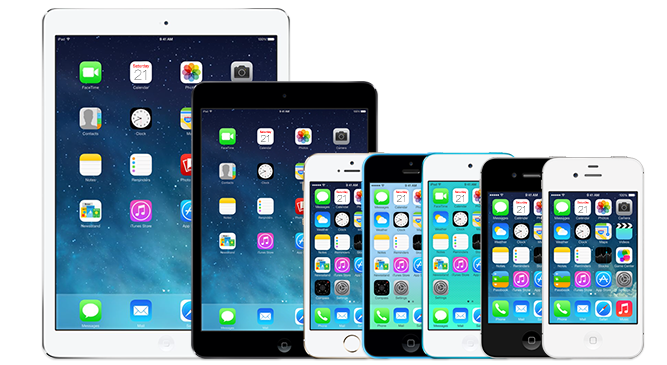
Learn how to update your iOS device wirelessly or using iTunes. IOS update introduces new features that you can use to do more things with the iPhone, iPad, or iPod touch. Make sure you always update your device in order not to miss the latest features.Before you start
Create a backup of your devices using iCloud or iTunes.
Updating your device wirelessly
If a message stating that the update is available, tap Install Now. You can also follow the steps below:
Connect the device to the power supply and connect to the Internet with Wi-Fi.
Tap Settings> General> Software Update.
Tap Download and Install. If the message requested that the application be removed for iOS requires a greater capacity for renewal, tap Go or Cancel. Then, IOS will reinstall the removed application. If you tap Cancel, learn the actions that need to be done next.
To update them now, tap Install. Or you can tap and choose Install Later Tonight or Remind Me Later. If you tap Install Tonight, simply connect the iOS device to the power supply before you go to bed. Throughout the night, the device will be updated automatically.
If prompted, enter your passcode.
If you need greater capacity to wirelessly update
If you need greater capacity to update wirelessly, you can update using iTunes or manually delete content from the device. Do you use iTunes or update wirelessly, you will have the same amount of storage capacity in the device after updated.
Some software updates iOS is not available wirelessly. VPN or proxy connection may make the device can not contact the server updates iOS.

0 Comment for "How To Update IOS software on the iPhone, iPad, or iPod touch"